
Download FEBE – Free Firefox Backup Tool for Bookmarks, Extensions & Settings
Overview – Why FEBE Is the Ultimate Firefox Backup Solution
Switching to a new computer or reinstalling Firefox can feel like a digital minefield. Your carefully curated bookmarks, favorite extensions, custom themes, and saved passwords are all at risk of disappearing in the process. FEBE (Firefox Environment Backup Extension) eliminates that anxiety by providing a single‑click, secure way to back up every piece of your Firefox profile and restore it on any other machine. Designed as a native Firefox add‑on, FEBE lives right inside the browser’s Tools menu, making the backup workflow feel like a natural extension of your everyday browsing routine.
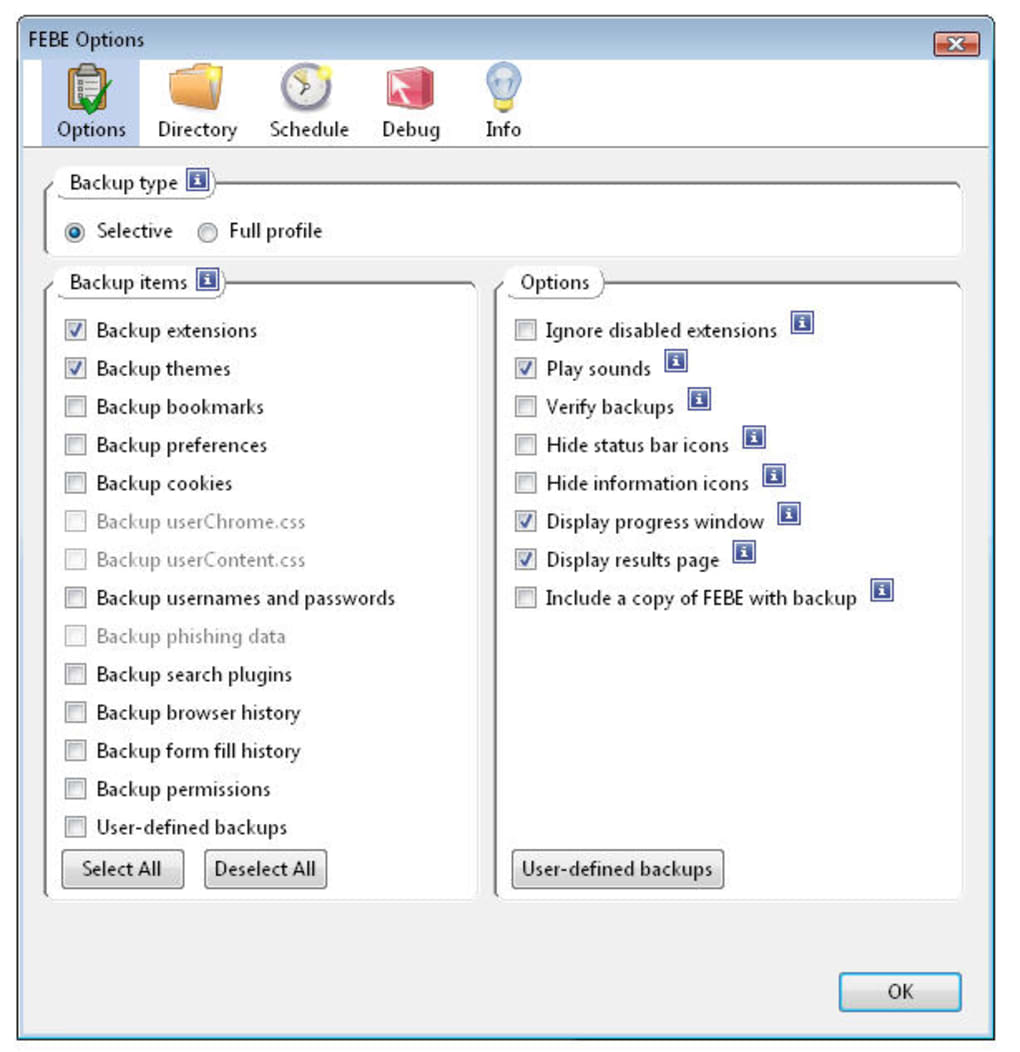
What sets FEBE apart from generic file‑copy methods is its deep integration with Firefox’s internal data structures. It doesn’t just zip up the profile folder; it intelligently extracts bookmarks, extensions, preferences, themes, cookies, saved logins, and even the hidden “about:config” settings. This granularity ensures that when you restore a backup, everything appears exactly as it did before—no missing icons, no broken add‑ons, and no lost customizations.
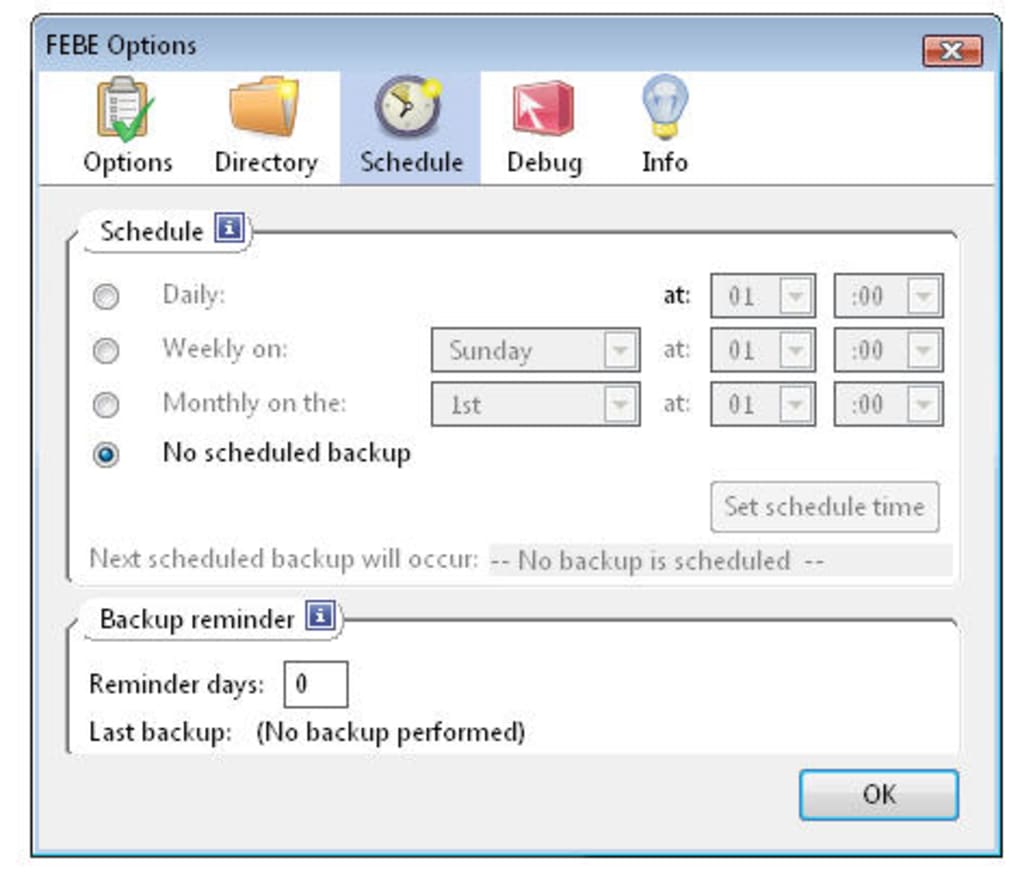
Beyond one‑off backups, FEBE includes a flexible scheduling engine. You can configure automatic daily, weekly, or monthly backups, and store the resulting files on local disks, external drives, or cloud services such as Box.net (supported in the latest update). Whether you’re a casual user who only wants a safety net or an IT professional managing multiple workstations, FEBE scales to meet those needs while keeping the interface uncluttered and intuitive.
In short, FEBE is the missing piece for anyone who treats their Firefox environment as a productivity hub rather than a disposable tool. By offering a reliable, free, and easy‑to‑use backup mechanism, it safeguards your browsing ecosystem against hardware failures, accidental deletions, and the inevitable upgrades that keep software humming.
Key Features – What FEBE Brings to Your Firefox Experience
- Full Profile Backup: Captures bookmarks, extensions, themes, cookies, saved passwords, and hidden preferences in a single archive.
- One‑Click Restore: Re‑installs the entire Firefox environment on a new PC or after a fresh install without manual file handling.
- Scheduled Backups: Automated daily, weekly, or monthly backups to keep your data current without extra effort.
- Cloud Integration: Directly upload backup files to Box.net or any folder you map as a network drive.
- Selective Restore: Choose specific components (e.g., only bookmarks or extensions) when you don’t need a full profile rebuild.
- Portable Export: Export backup files to USB sticks or external SSDs for offline storage and travel‑ready safety.
- Version Compatibility: Works with Firefox 3.0 through the latest releases, ensuring long‑term utility.
- Silent Mode: Disable warning sounds and pop‑ups for a quieter backup experience.
- Detailed Log Files: Review a comprehensive log of each backup and restore operation for troubleshooting.
- Free & Open Source: No hidden fees, no trial periods—FEBE is completely free to download and use.
Each of these features is designed with a specific user pain point in mind. For example, the selective restore option is perfect for developers testing new Firefox versions who only need to migrate extensions while keeping their bookmark collection untouched. The automatic scheduling removes the guesswork from regular backups, turning a potentially risky manual process into a set‑and‑forget routine. Together, they form a robust toolkit that protects your browsing environment while staying lightweight enough not to impact Firefox’s performance.
Installation & Usage – Step‑by‑Step Guide to Get FEBE Up and Running
Downloading and Installing FEBE
Start by visiting the official Firefox Add‑ons website or the FEBE project page. Click the “Add to Firefox” button, and Firefox will prompt you to confirm the installation. Because FEBE is a signed Mozilla extension, you won’t see any warning about untrusted software. Once you accept, the extension downloads automatically, and a brief progress bar appears at the bottom of the browser window.
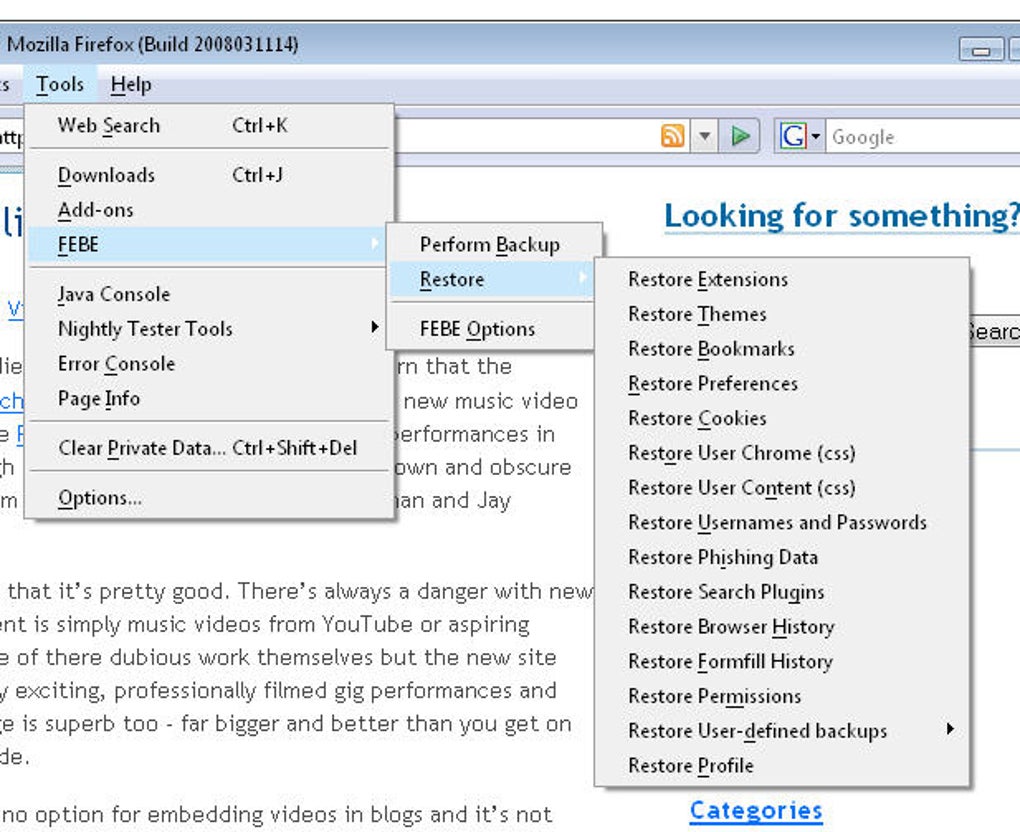
After the download finishes, Firefox asks you to restart the browser to activate FEBE. Save any open tabs, click “Restart Now,” and when Firefox relaunches you’ll notice a new entry under the Tools → FEBE Backup menu. This entry opens the main FEBE dashboard where all backup actions are managed.
Creating Your First Backup
Open the FEBE dashboard and you’ll be greeted by a clean interface with three primary buttons: Backup Now, Restore, and Settings. Click Backup Now to start an immediate backup. FEBE will ask you to choose a destination folder—pick a location on your internal drive, an external USB stick, or a mapped cloud folder. The extension then compresses your profile data into a .febe file, naming it with a timestamp for easy identification (e.g., FEBE_2025-10-25_14-30.zip).
During the process, a progress bar shows the status of each component being saved. When the backup completes, a confirmation dialog appears, and you can optionally open the folder containing the newly created archive. It’s advisable to keep at least two recent backups in separate locations for redundancy.
Scheduling Automatic Backups
Navigate to the Settings tab to configure scheduled backups. You’ll find a simple calendar‑style scheduler where you can select the frequency (daily, weekly, monthly) and the exact time of day. Choose your preferred storage location and enable “Run in background” to let FEBE operate without interrupting your browsing. Once saved, the extension silently runs at the set intervals, creating new .febe files without any further user interaction.
Restoring a Backup on a New Machine
When you’re ready to migrate to a new computer, install Firefox, then add FEBE from the same source. Open the FEBE dashboard, click Restore, and browse to the .febe file you previously saved. FEBE will unpack the archive and automatically replace the current profile data. After the restoration, Firefox restarts, and you’ll see your original bookmarks, extensions, themes, and settings exactly as they were on the old machine.
If you only need certain items, click the “Advanced” button on the restore screen to select specific components. This granular approach is useful for developers who want to test new Firefox builds without losing their custom extensions.
Compatibility, Pros & Cons – What You Need to Know Before Installing
Supported Platforms: FEBE runs wherever Firefox runs, which includes Windows 7/8/10/11, macOS 10.12 and later, Linux distributions (Ubuntu, Fedora, Debian), and even Firefox for Android in limited mode (via side‑loading the add‑on). Because the extension works inside the browser, there are no separate system requirements beyond a compatible Firefox version.
Pros
- Completely free and open‑source.
- Backs up every important part of the Firefox profile, not just bookmarks.
- One‑click restore saves time and eliminates manual file handling.
- Automatic scheduling keeps backups current without user intervention.
- Cloud and portable storage options provide flexibility for different workflows.
- Selective restore lets you migrate only what you need.
- Lightweight UI integrates seamlessly with Firefox’s native menus.
- Detailed logs help troubleshoot any backup or restore issues.
Cons
- Warning sounds can be intrusive; they must be manually disabled in settings.
- Cloud integration is limited to Box.net; other services require manual file transfer.
- Advanced restore options may be overwhelming for very casual users.
- While compatible with most Firefox versions, major UI overhauls could require future updates.
FEBE delivers on its promise of a painless, comprehensive Firefox backup. The ability to schedule backups and restore selectively makes it a standout tool for power users. The only minor annoyance is the default warning sound, which is easy to mute. Overall, a solid 4.5‑star rating for reliability and feature depth.
Conclusion & Frequently Asked Questions
If you value your Firefox environment and want a hassle‑free way to protect it, FEBE is the answer. Its free price tag, deep integration with Firefox, and robust feature set make it a must‑have for anyone who relies on bookmarks, extensions, and custom settings across multiple devices. By automating the backup process and offering both full and selective restores, FEBE removes the fear of data loss and streamlines migrations to new hardware. Don’t wait for a crash or a sudden reinstall—download FEBE today, set up a scheduled backup, and enjoy peace of mind knowing your browsing world is safely archived.
Download FEBE now and start securing your Firefox profile with just a few clicks. Your future self will thank you.
FAQ – Answers to Common FEBE Questions
Can FEBE back up saved passwords?
Yes, FEBE includes the saved logins stored in Firefox’s password manager. When you restore a backup, all saved passwords are re‑imported automatically.
Is there a limit to how many backups I can store?
No technical limit exists within FEBE. The only constraint is the storage space available on the destination drive or cloud folder.
Does FEBE work with Firefox for Android?
FEBE can be side‑loaded on Firefox for Android, but the full feature set (especially scheduled backups) is limited compared to desktop versions.
Can I encrypt my backup files?
FEBE does not include built‑in encryption, but you can manually encrypt the .febe archive using third‑party tools like 7‑Zip or VeraCrypt before storing it.
What should I do if a backup fails?
Check the log file generated by FEBE (found in the extension’s settings). It provides detailed error messages. Common fixes include ensuring the destination folder is writable and that Firefox isn’t running in Safe Mode.







